Using the Whiteboard – Synetech Interactive Screen Displays
9 February 2026
- Turn on the power strip located at the back of the screen.
 Turn on the interactive screen using the power button located on the lower right front panel.
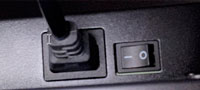 Note: If the screen does not turn on, check that the switch located at the back of the device is turned on.
- You can expand the options menu from either side of the screen.
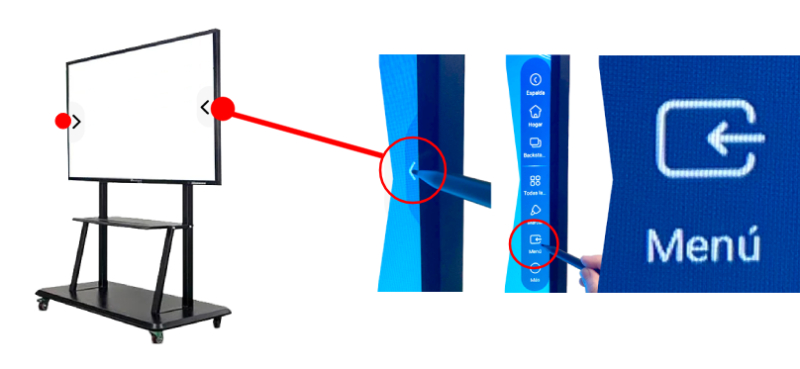

- Click on the Menu icon and select the ANDROID input. The
 green dot next to the input name highlights the inputs that are currently connected. The
  green icon indicates the input that is currently active.
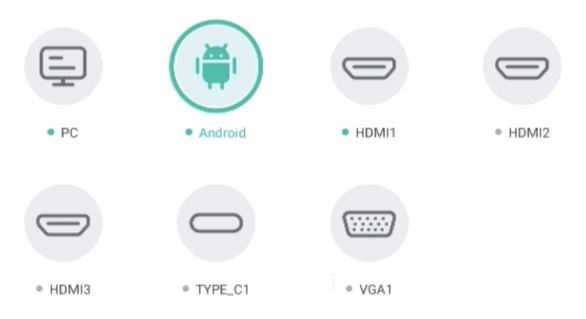
- Click on the Menu icon and select the ANDROID input. The
 On the home screen, click on the Whiteboard application.
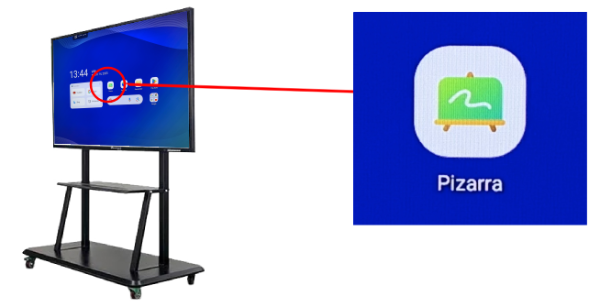
Once inside the application, the basic tools for managing the whiteboard features are:

 Pen/Stylus: Allows you to draw on the whiteboard (press and hold to expand tool options such as color, size, etc.).
 Selector: Allows you to select items on the whiteboard for editing (resize, move, delete).
 Eraser: To delete drawn elements.
 Exit: Closes the application.
Note: For more information on using this application, please refer to the screen user manual.