Annotation Tool
9 February 2026
When presenting via a laptop or PC, you have the option to make annotations on the screen by activating the Mark menu, accessible from either side of the display.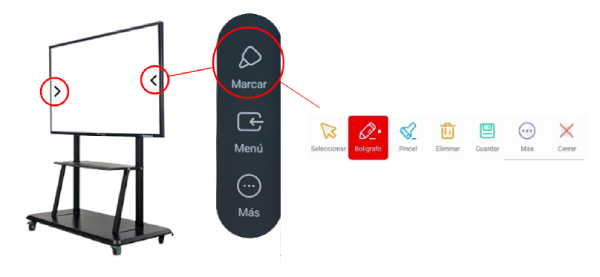
Upon selecting Mark, a toolbar with several tools will appear, which you can move around the panel screen.
- Select: This tool allows you to select items.
- Pen and Brush: These tools allow you to draw and write on the screen. By clicking on them, you can choose the color.
- Delete: All marks made on the screen will be removed.
- Save: A screenshot is automatically taken and saved to local files.
- More: Allows you to save the document in a selected folder, share it via QR code, upload it to the cloud, or insert it into the whiteboard as an image to continue working on the highlighted content.
- Close: Exit the tool.
Note: For further information on using this application, please refer to the screen user manual.