1.- Tender Phase (Offers)
26 February 2026

To explain the purchasing process, we will show an example based on the acquisition of a memory card.
In this case, we start with a product with specific characteristics: 32GB SD Memory Card.
1.1.- Catalog Search and Basket.
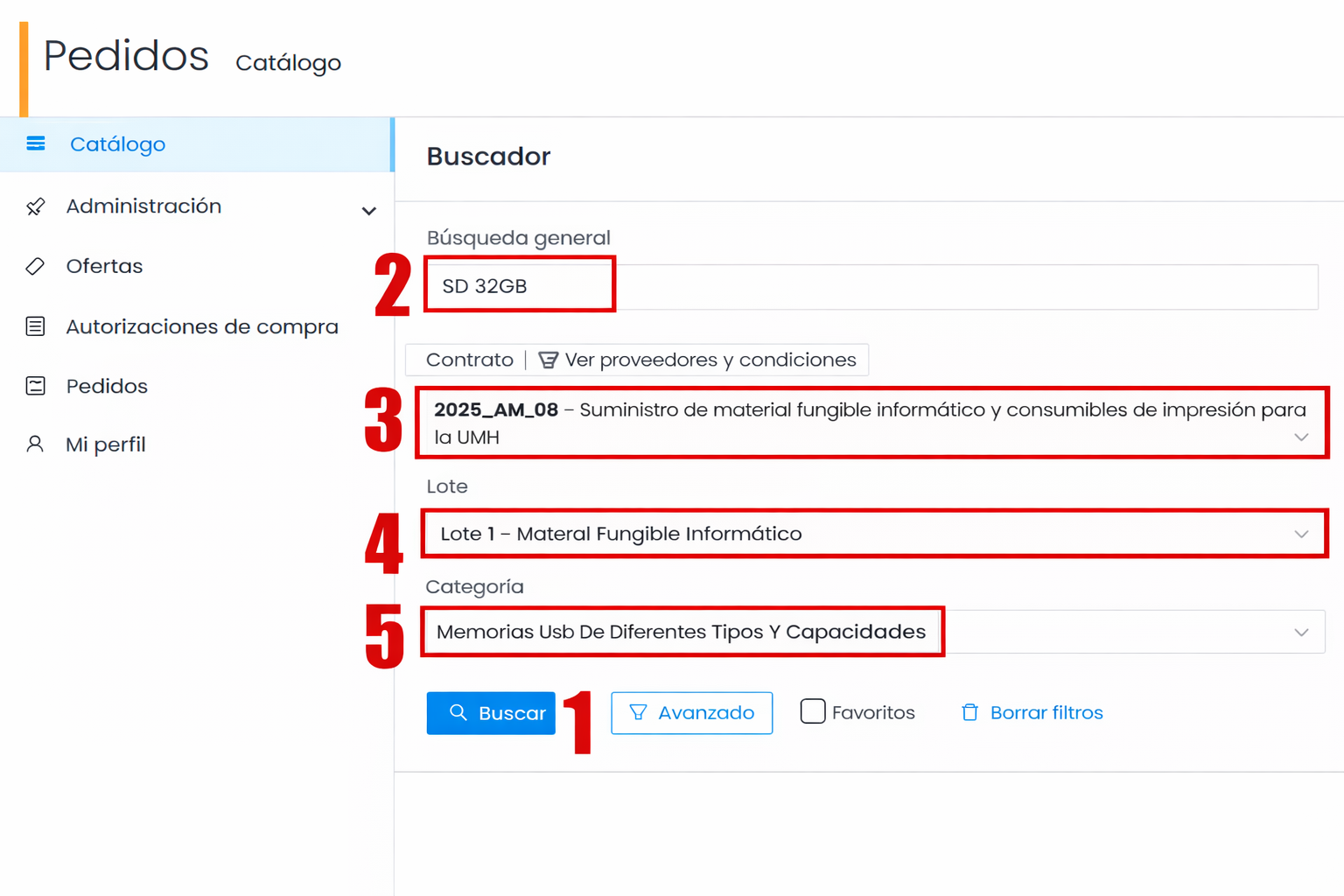
From the search engine found in the “Catalog” tab of the Ordering Application  we will add the necessary parameters to filter the search.
-
- Click on the “Advanced” filter button
- Add the “General Search” criteria if you haven’t decided on the configuration of the equipment to request, and choose the appropriate parameters in a second search. In this case, we will enter “SD 32GB“
- Select the contract “2025_AM_08 – Supply of IT consumables and printing supplies for UMH”
- Select “Lot 1 – IT Consumables”
- Select the category “Memorias Usb De Diferentes Tipos Y Capacidades” (USB Memories of Different Types and Capacities)
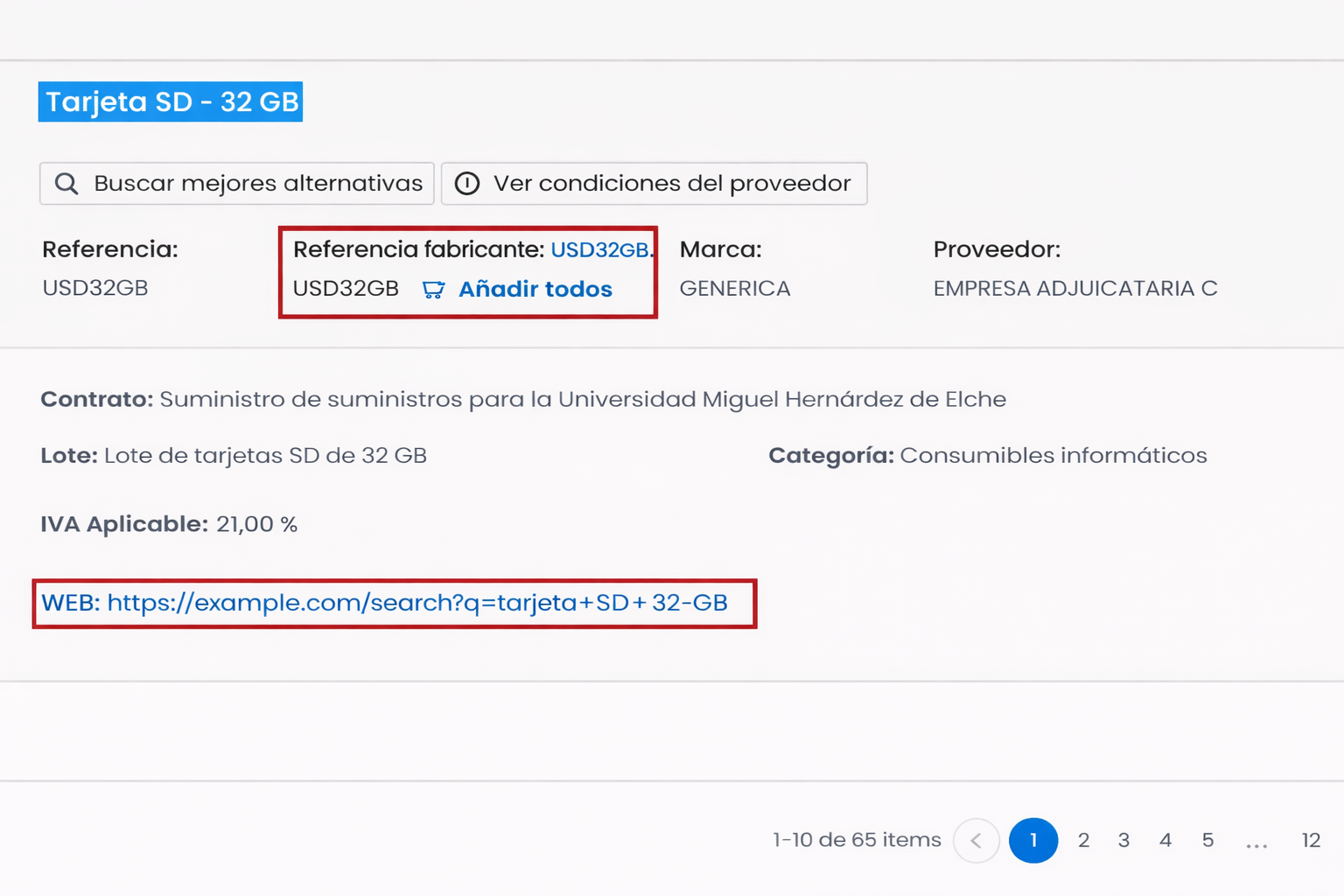
Note: The prices of the products indicated in the catalogues are never final; it will be necessary to issue a request for quotation for the desired product to determine the final purchase price
If you have doubts about the characteristics of a piece of equipment, you can visit the product link provided by the supplier.
Offers will always be grouped in the basket by Lots, so if products from different lots are requested, independent tender requests will be generated for each Lot.
Once you have located the equipment you wish to purchase, you must check if it is available from other approved companies; to do this, click the “Add all” button.
Access the basket and check that all suppliers that can provide the product have been added.
-
- If multiple items are requested: When requesting multiple items, it will be necessary to group the products into orders according to common suppliers, creating an independent offer for each group of suppliers.
Example of purchasing 3 products with a different number of suppliers:
-
-
- Offer 1 → Product 1 (Supplier A + Supplier B)
- Offer 2 → Product 2 (Supplier A + Supplier B + Supplier C)
- Offer 3 → Product 3 (Supplier C)*
-
*In the case of offer 3, since there is a single supplier who also has another shared reference,
an independent offer will be generated for that product.
-
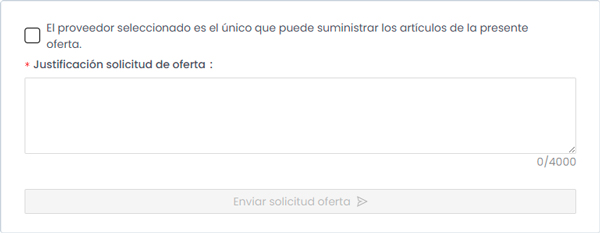
- If only one item is requested:
- Verify that all available suppliers are included.
- Check the box “The selected supplier is the only one that can provide the items in this offer”.
- Fill in the field “Justification for tender request”, indicating the reason for sending the offer to the selected suppliers.
- If only one item is requested:
1.2.- Completing the tender process.
1.2.1.- Petitioner’s data.
Next, we must complete all information related to the petitioner of the offer.
It is essential to select the correct petitioner, as in the following steps only budget lines for which said petitioner is responsible can be chosen. If the person responsible does not appear in the “On behalf of” field, it will be necessary to consult the “How to delegate purchases” section in the FAQ of this framework agreement.
1.2.2.- End date for submission of offers.
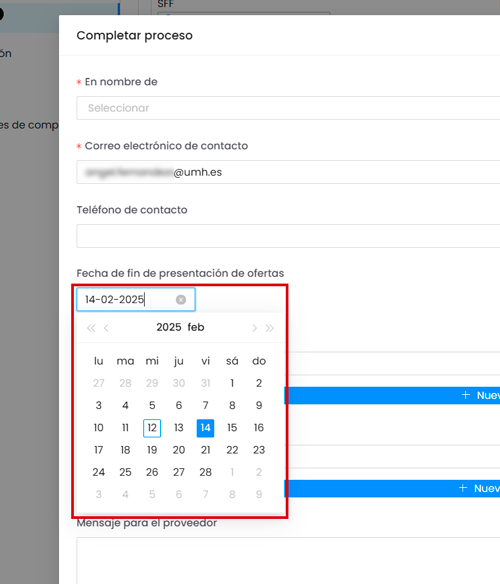
By default, the application sets a response period for the offer of 5 calendar days.
If the offer is published at the end of the week, it will be necessary to review and, if necessary, extend this period to ensure a reasonable response time for suppliers.
End date for submission of offers It will be necessary to check and adjust this period, if applicable, to allow a timely response from the supplier.
1.2.3.- Message for the supplier.
In this step, we can provide any relevant information that the supplier should take into account to correctly value the offer.
1.2.4.- Sending the tender request
Once the form details are completed, click the “Send tender request” button to forward the order to the companies.
At this point, an offer number will be generated with the following structure: O-2026/XXXX.
1.3 Valuation of the offer.
Once the tender requests have been sent, we must wait for the suppliers to send their proposals to proceed with their valuation.
You can access the valuation of the offer through:
-
- The email received.
- The “Pending Valuation ” button within the Offers section of the ordering application.
1.3.1.- Offer Valuation Notice
Within the offer, access the “Valuation Details” tab. At this point, we must consider the following:
-
- We will not be able to see the valuation made by each supplier until we click the “Value offers” button.
- The system will automatically award the offer to the company that has presented the lowest price. In the last column, we can check which company the offer has been awarded to, as well as the details of each proposal received.
In this step, we will have the option to “Send order” to continue with the process or “Discard valuation” if we wish to cancel the tender request.
Next step: 2.- Purchase or Order Phase.